Creating an Event Function Using a Container Image Built with Node.js
For general details about how to use a container image to create and execute an event function, see Creating an Event Function Using a Container Image and executing the Function.
This chapter introduces how to create an image using Node.js and perform local verification for event functions.
Note
You need to implement an HTTP server in the image listening to port 8000 to receive requests.
Following request path is required:
POST /invoke is the function execution entry where trigger events are processed.
Following request path is optional:
POST /init is the function initialization entry where you can perform initialization operations such as loading dependencies and preparing runtime environment. This entry is optional, and you can choose to implement it based on your needs. If you do not implement this entry, FunctionGraph will directly execute the function without initialization.
Step 1: Create the Project
In this example we use the express framework to create an HTTP server.
For details about express, see Express - Node.js web application framework.
Initialize the project with npm:
First, create a project directory and initialize it with npm:
mkdir -p my-event-function/src
cd my-event-function
npm init -y
Then, install the express framework:
npm install express
You can then modify the generated package.json file to specify
the Node.js version,
CPU architecture,
and OS platform required by the function,
as well as the function execution entry file and
dependencies.
For example:
{
  "name": "container-event-express",
  "homepage": "https://opentelekomcloud-community.github.io/otc-functiongraph-nodejs-runtime",
  "bugs": {
    "url": "https://github.com/opentelekomcloud-community/otc-functiongraph-nodejs-runtime/issues"
  },
  "repository": {
    "type": "git",
    "url": "git+https://github.com/opentelekomcloud-community/otc-functiongraph-nodejs-runtime.git"
  },
  "version": "1.0.0",
  "description": "An example of a custom container event function",
  "main": "src/main.js",
  "keywords": [],
  "author": "T Cloud Public",
  "license": "Apache-2.0",
  "engines": {
    "node": "25.7.0"
  },
  "cpu": [
    "x64"
  ],
  "dependencies": {
    "express": "^4.17.1",
    "moment": "^2.30.1"
  },

  "scripts": {
    "dev": "NODE_DEBUG=express* node -harmony src/index.js",
    "start": "node -harmony src/index.js",
    "test_local": "make test_local"
  }
}
Implement the function
Next, create the entry file for the function, for example, src/index.js:
"use strict";

const express = require("express");
const { loggingMiddleware } = require("./loggingmiddleware");

const PORT = 8000;

const app = express();
app.use(express.json());
app.use(loggingMiddleware);

// Optional function initialization entry
app.post("/init", (req, res) => {
  const logger = req.logger;
  logger.info("Function initialization");
  // Perform initialization operations here
  res.json({ message: "Initialization completed" });
});

// Function execution entry
app.post("/invoke", (req, res) => {
  const event = req.body;
  const logger = req.logger;

  logger.info("Received event:", event);

  logger.info("Processing event with request ID:", req.cffRequestId);

  // If enable_auth_in_header is set to true, you can access the security credentials from the request headers
  const ak = req.header("x-cff-security-access-key") || "No Access Key provided -> enable_auth_in_header";
  const sk = req.header("x-cff-security-secret-key");
  const st = req.header("x-cff-security-token");
  logger.info("Security Access Key:", ak);

  // Process the event and generate a response
  const response = {
    message: "Event processed successfully",
    inputEvent: event,
  };
  res.json(response);
});

app.listen(PORT, () => {
  console.log(`Listening on http://localhost:${PORT}`);
});
In this code, we create an express application that listens on port 8000.
We define two POST endpoints: * /invoke for function execution and * /init for function initialization.
Run and Test server from code
You can run the server directly from the code to verify that it works as expected:
npm run dev
Then, you can send test requests to the server using curl or any API testing tool.
For example, to test the function execution entry, you can send a POST request to the /invoke endpoint:
curl -X POST http://localhost:8000/invoke -H "Content-Type: application/json" -d '{"key": "value"}'
You should see the response from the server indicating that the event was processed successfully.
{"message":"Event processed successfully","inputEvent":{"key":"value"}}
Step 2: Build the Container Image
Create a Makefile
To simplify the development and testing process, create a Makefile in the project root folder:
SHELL:=/bin/bash
TARGET_PATH=target
DOCKER_FILE=Dockerfile

IMAGE_NAME=custom_container_event_express_nodejs


build: clean

docker_build:
  docker buildx build \
    --platform linux/amd64 \
    --file $(DOCKER_FILE) \
    --tag $(IMAGE_NAME):latest .

docker_run_local:
  docker container run \
    --rm \
    --platform linux/amd64 \
    --publish 8000:8000 \
    --user 1003:1003 \
    --name $(IMAGE_NAME) \
    $(IMAGE_NAME):latest

docker_push: docker_build
  # see: https://docs.otc.t-systems.com/software-repository-container/umn/image_management/obtaining_a_long-term_valid_login_command.html#swr-01-1000
  docker login -u $(OTC_SDK_PROJECTNAME)@$(OTC_SDK_AK) -p $(OTC_SWR_LOGIN_KEY) $(OTC_SWR_ENDPOINT)
  docker tag $(IMAGE_NAME):latest $(OTC_SWR_ENDPOINT)/$(OTC_SWR_ORGANIZATION)/$(IMAGE_NAME):latest
  docker push $(OTC_SWR_ENDPOINT)/$(OTC_SWR_ORGANIZATION)/$(IMAGE_NAME):latest

docker_all: build docker_build docker_push

test_local:
  # execute a curl
  curl -X POST \
  -H "X-Cff-Request-Id: $(shell uuidgen)" \
  -H "X-Cff-Func-Name: 0@default@sample-container-event-express" \
  -H "X-Cff-Func-Version: latest" \
  -H "X-Cff-Func-Timeout: 30" \
  -H 'Content-Type: application/json' \
  -d '{"key":"Hello World of FunctionGraph"}' localhost:8000/invoke
  @echo ""

clean:
  rm -rf $(TARGET_PATH)

all: build docker_build

.PHONY: build run_local docker_build docker_run_local docker_push docker_all test_local clean
Create a Dockerfile
Create a Dockerfile in the project root folder to define the image.
Note
- In the cloud environment, UID 1003 and GID 1003 are used to start the container by default.The two IDs can be modified by choosing Configuration > Basic Settings > Container Image Overrideon the function details page. They cannot be root or a reserved ID.
- If the base image of the Alpine version is used, run the addgroup and adduser instead of groupadd and useradd commands.
You can use any base image that meets your application requirements.
Note
Ubuntu images are larger in size but come with more pre-installed libraries.
Alpine images are smaller in size but may require additional libraries depending on the application requirements.
Following example uses an Alpine base image with Node.js installed.
# https://github.com/nodejs/docker-node/blob/4cdc1588a00d87009420fbe89abb009dbc24c091/25/alpine3.22/Dockerfile
FROM node:alpine3.22@sha256:8c582bc73db57610b25f2ba4f71bd2d6f17f0b47367310c949acad09ea4dfcb3

ENV HOME=/home/paas_user

ENV GROUP_ID=1003
ENV GROUP_NAME=paas_user

ENV USER_ID=1003
ENV USER_NAME=paas_user

# Set timzone to UTC
ENV TZ=Etc/UTC

RUN apk add --no-cache tzdata && \
    mkdir -p ${HOME} && \
    # add group with specific GID
    addgroup -g ${GROUP_ID} ${GROUP_NAME} && \
    # add user with specific UID and GID
    adduser -u ${USER_ID} -G ${GROUP_NAME} -D ${USER_NAME}

WORKDIR ${HOME}

# Copy package.json and package-lock.json
COPY package*.json ${HOME}

# Install dependencies
RUN cd ${HOME} && \
    npm install --production

# Copy source code
COPY ./src ${HOME}/src

# Copy entrypoint script
COPY ./entrypoint.sh ${HOME}/entrypoint.sh

# adjust permissions
RUN chown -R ${USER_ID}:${GROUP_ID} ${HOME} && \
    chmod -R 550 ${HOME}

ENV NODE_ENV=production

EXPOSE 8000

# switch to non root user
USER ${USER_NAME}

ENTRYPOINT ["sh", "/home/paas_user/entrypoint.sh"]
Create following entrypoint script to start the server in the container:
#!/bin/sh

cd /home/paas_user
npm start
Build and verify the image locally
1. Build the image
Build the image either using docker build or the Makefile target docker_build:
Run the following command in the project root folder to build the image:
docker buildx build \
   --platform linux/amd64 \
   --file Dockerfile \
   --tag custom_container_event_express_nodejs:latest .
Run the following command in the project root folder to build the image:
make docker_build
2. Run the image locally
Run the image either using docker run or the Makefile target docker_run_local:
Run the following command in the project root folder to run the image:
docker container run --rm \
  --platform linux/amd64 \
  --publish 8000:8000 \
  --name custom_container_event_express_nodejs \
  custom_container_event_express_nodejs:latest
Run the following command in the project root folder to run the image:
make docker_run_local
3. Test the image locally
Test the image either using curl or the Makefile target test_local:
Run the following command in a new terminal to test the image using a curl command:
curl -X POST -H 'Content-Type: application/json' -d '{"key":"Hello World of FunctionGraph"}' localhost:8000/invoke
Run the following command in a new terminal to test the image:
make test_local
You should see output similar to the following:
{"message":"Event processed successfully","inputEvent":{"key":"Hello World of FunctionGraph"}}
Step 3: Upload the Container Image to SWR (SoftWare Repository for Container)
For details on SWR (SoftWare Repository for Container), see:
Prerequisites
SWR instance created. For more information, see Creating a Software Repository for Container.
Credentials for SWR created. For more information, see Creating Access Credentials.
Upload the image to SWR
To upload the container image to SWR, following values are needed:
Parameter |
Description |
|---|---|
OTC_SDK_PROJECTNAME |
Your project name.
To obtain this, see: Obtaining a Project ID
in API usage guide but use the project name instead of the project ID.
|
OTC_SDK_AK |
Your Access Key |
OTC_SWR_LOGIN_KEY |
The login key for SWR.
For details see: Obtaining a Long-Term Docker Login Command
in the Software Repository for Container user manual.
It can be generated using the access key ${OTC_SDK_AK} and secret key ${OTC_SDK_SK} as follows:
|
OTC_SWR_ENDPOINT |
SWR endpoint, e.g. swr.eu-de.otc.t-systems.com |
OTC_SWR_ORGANIZATION |
Your SWR organization name |
IMAGE_NAME |
The name of your container image |
- Set the environment variables:
export OTC_SDK_PROJECTNAME=<your_project_name>
export OTC_SDK_AK=<your_access_key>
export OTC_SDK_SK=<your_secret_key>
export OTC_SWR_LOGIN_KEY=$(printf "${OTC_SDK_AK}" | \
        openssl dgst -binary -sha256 -hmac "${OTC_SDK_SK}" | \
        od -An -vtx1 | sed 's/[ \n]//g' | sed 'N;s/\n//')
export OTC_SWR_ENDPOINT=swr.eu-de.otc.t-systems.com
export OTC_SWR_ORGANIZATION=<your_swr_organization>
export IMAGE_NAME=custom_container_event_example
Upload the image to SWR either using shell commands or the Makefile target docker_push:
Run the following commands in the container-event folder to upload the image to SWR:
docker login -u $(OTC_SDK_PROJECTNAME)@$(OTC_SDK_AK) -p $(OTC_SWR_LOGIN_KEY) ${OTC_SWR_ENDPOINT}
docker tag $(IMAGE_NAME):latest ${OTC_SWR_ENDPOINT}/$(OTC_SWR_ORGANIZATION)/$(IMAGE_NAME):latest
docker push ${OTC_SWR_ENDPOINT}/$(OTC_SWR_ORGANIZATION)/$(IMAGE_NAME):latest
Run the following command in the container-event folder to upload the image to SWR:
make docker_push
Step 4: Create an Event Function Using the Container Image
In the left navigation pane of the management console, choose Compute > FunctionGraph. On the FunctionGraph console, choose Functions > Function List from the navigation pane.
Click Create Function in the upper right corner. On the displayed page, select Container Image for creation mode.
Set the basic function information.
Function Type: Select Event Function.
Region: The default value is used. You can select other regions.
Regions are geographic areas isolated from each other. Resources are region-specific and cannot be used across regions through internal network connections. For low network latency and quick resource access, select the nearest region.
Function Name: Enter e.g. custom_container_event.
Enterprise Project: The default value is default. You can select the created enterprise project.
Enterprise projects let you manage cloud resources and users by project.
Agency: Select an agency with the SWR Admin permission. If no agency is available, create one by referring to Creating an Agency.
Container Image: Enter the image uploaded to SWR. The format is: {SWR_endpoint}/{organization_name}/{image_name}:{tag}.
Example: swr.eu-de.otc.t-systems.com/my_organization/custom_container_event_example:latest.
Advanced Settings: Collect Logs is disabled by default. If it is enabled, function execution logs will be reported to Log Tank Service (LTS). You will be billed for log management on a pay-per-use basis.
Parameter
Description
Log Configuration
You can select Auto or Custom.
Auto: Use the default log group and log stream. Log groups prefixed with “functiongraph.log.group” are filtered out.
Custom: Select a custom log group and log stream. Log streams that are in the same enterprise project as your function.
Log Tag
You can use these tags to filter function logs in LTS.You can add 10 more tags.Tag key/value: Enter a maximum of 64 characters.Only digits, letters, underscores (_), and hyphens (-) are allowed.After the configuration is complete, click Create Function.
See also: Step 4: Creating Function in the user manual.
Step 5: Test the Event Function
On the function details page, click Test. In the displayed dialog box, create a test event:
Select blank-template,
set Event Name to helloworld,
modify the test event as follows,
{
    "key": "Hello World of FunctionGraph"
}
and click Create.
See also: Step 5: Testing the Function in the user manual.
Step 6: View the Execution Result
Click Test and view the execution result on the right.
You should see output similar to the following:
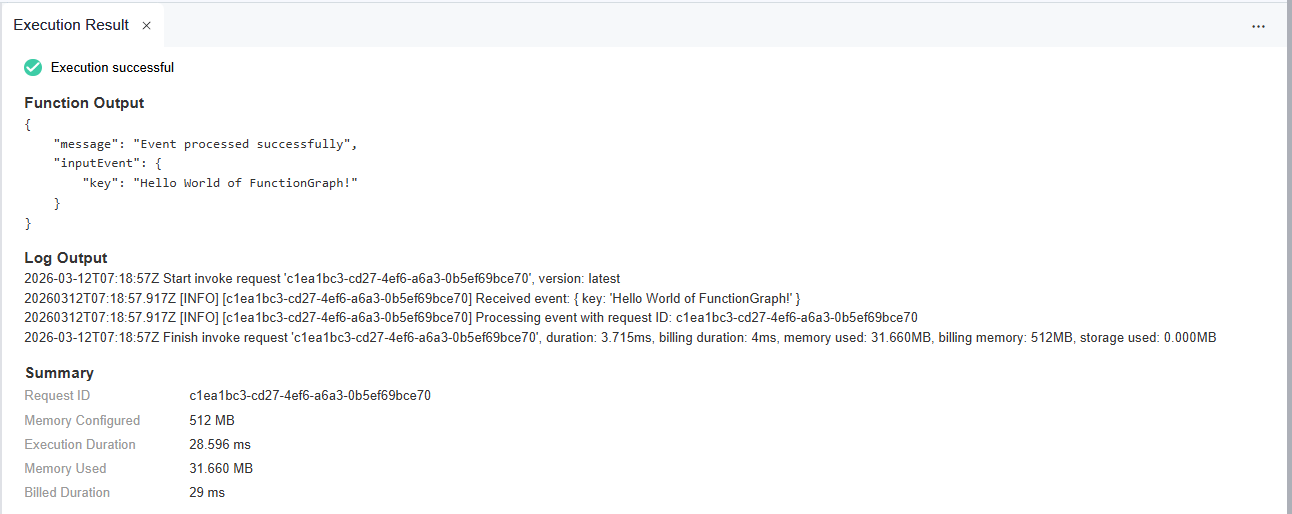
The execution result contains the following sections:
The Function Output section displays the function’s return value.
The Log Output section displays the logs generated during function execution.
Note
This page displays a maximum of 2K logs.
The Summary section displays key information from the Log.