Setting up the Node.js project for event functions
The following examples assumes that you have Node.js 20.15.1 installed you are using npm as the package manager and linux.
Creating a Node.js project
Project structure
A minimal Node.js FunctionGraph project is typically structured as follows:
/project-root
 ├─ src
 |  └─ index.js
 └─ package.json
Sample code
exports.handler = async (event, context) => {
  const logger = context.getLogger();
  logger.info("Function name:", context.getFunctionName());

  const output =
  {
      'statusCode': 200,
      'headers':
      {
          'Content-Type': 'application/json'
      },
      'isBase64Encoded': false,
      'body': JSON.stringify(event),
  }
  return output;
}
If your Node.js function contains an asynchronous task, use Promise to execute the task in the current invocation. You can directly return the declared Promise or await to execute it.
The asynchronous task can be executed only before the function responds to requests.
exports.handler = async (event, context) => {
  const logger = context.getLogger();
  logger.info("Function name:", context.getFunctionName());

  const output =
  {
      'statusCode': 200,
      'headers':
      {
          'Content-Type': 'application/json'
      },
      'isBase64Encoded': false,
      'body': JSON.stringify(event),
  }
  const promise = new Promise((resolve, reject) => {
    setTimeout(() => {
        resolve(output)
    }, 2000)
  })

  return promise;

  // another way
  // res = await promise;
  // return res;
}
// function initializer
exports.initializer = function (context, callback) {
  const logger = context.getLogger();
  logger.info("initializing :", context.getFunctionName());

  callback(null, "");
};

// function handler
exports.handler = function (event, context, callback) {
  const error = null;
  const logger = context.getLogger();

  logger.info("Function name:", context.getFunctionName());

  const output = {
    statusCode: 200,
    headers: {
      "Content-Type": "application/json",
    },
    isBase64Encoded: false,
    body: JSON.stringify(event),
  };
  callback(error, output);
};
If the first parameter returned by callback is not null, the function execution fails and the HTTP error message defined in the second parameter is returned.
Package.json
The package.json file is used to manage the dependencies of a Node.js project. The following is a sample package.json file:
{
  "name": "sample-event-function",
  "version": "1.0.0",
  "main": "src/index.js",
  "type": "commonjs",
  "engines":{ "node": "20.15.1" },
  "cpu": ["x64"],
  "os": ["linux"],
  "scripts": {
    "postpack": "rm -f ${npm_package_name}.zip && tarball=\"${npm_package_name}-${npm_package_version}.tgz\"; tar -tf $tarball | sed 's/^package\\///' | zip -@r ${npm_package_name}.zip; rm $tarball"
  },
  "devDependencies": {},
  "dependencies": {},
  "files": [
    "src/**/*",
    "lib/**/*"
  ],
  "bundleDependencies": []
}
Deploying to FunctionGraph
Create Zip
To upload the function code to FunctionGraph, you need to create package of the project.
The directory structure of the zip package should be as follows:
/sample-event-function.zip
 ├─ lib
 |  └─ ...                 Service file directory (optional)
 ├─ node_modules           NPM third-party dependencies (optional)
 |  └─ ...
 ├─ src
 |  └─ index.js            .js handler file (mandatory)
 └─ package.json           NPM project management file (mandatory)
You can use the following npm command to create the package with the needed dependencies:
npm pack
The command creates a tarball file in the current directory.
As functiongraph requires a zip package, the tarball file need to be converted to a zip package. This is done using “postpack” script in package.json, which is executed after the tarball file is created. The script creates a zip package named ${npm_package_name}.zip from the generated tarball in the current directory and removes the tarball file.
Following are the commands executed in the “postpack” script explained:
# remove the existing ${npm_package_name}.zip file if exists
rm -f ${npm_package_name}.zip
# get the generated tarball file name using npm list command
tarball="${npm_package_name}-${npm_package_version}.tgz"
# create ${npm_package_name}.zip from the generated tarball file
# (and remove the leading "package/" in the file path)
tar -tf $tarball | sed 's/^package\\///' | zip -@r ${npm_package_name}.zip;
# remove the tarball file
rm $tarball
Note
See also Packaging Node.js Functions
Create FunctionGraph function in console
Log in to the FunctionGraph console.
Click Create Function and select Create from scratch.
In Basic Information: “FunctionType”: Event Function. “Region”: select the region where you want to create the function. “Function Name**: enter a Sample as name for the function. “Enterprise Project**: select default. “Runtime**: select the Node.js runtime version Node.js 20.15. “Agency”: select Use no agency
Click Create Function.
Upload the created ${npm_package_name}.zip file to the function by clicking Upload > Local ZIP.
The uploaded code will be automatically deployed on the FunctionGraph console. If you have modified the code, click Deploy again.
Modify the function handler:
Click Configuration > Basic Settings.
In the Handler field, enter the handler src/index.handler.
Click Save.
Modify the initializer (if needed):
Click Configuration > Lifecycle.
enable Initialization
In the Function Initializer field, enter the initializer src/index.initializer.
Click Save.
Testing the function
On the Code tab, click Test. In the Configure Test Event dialog box, create from Blank Template and set as:
{
   "key": "value"
}
Click Create to save the test event.
Click Test to test the function.
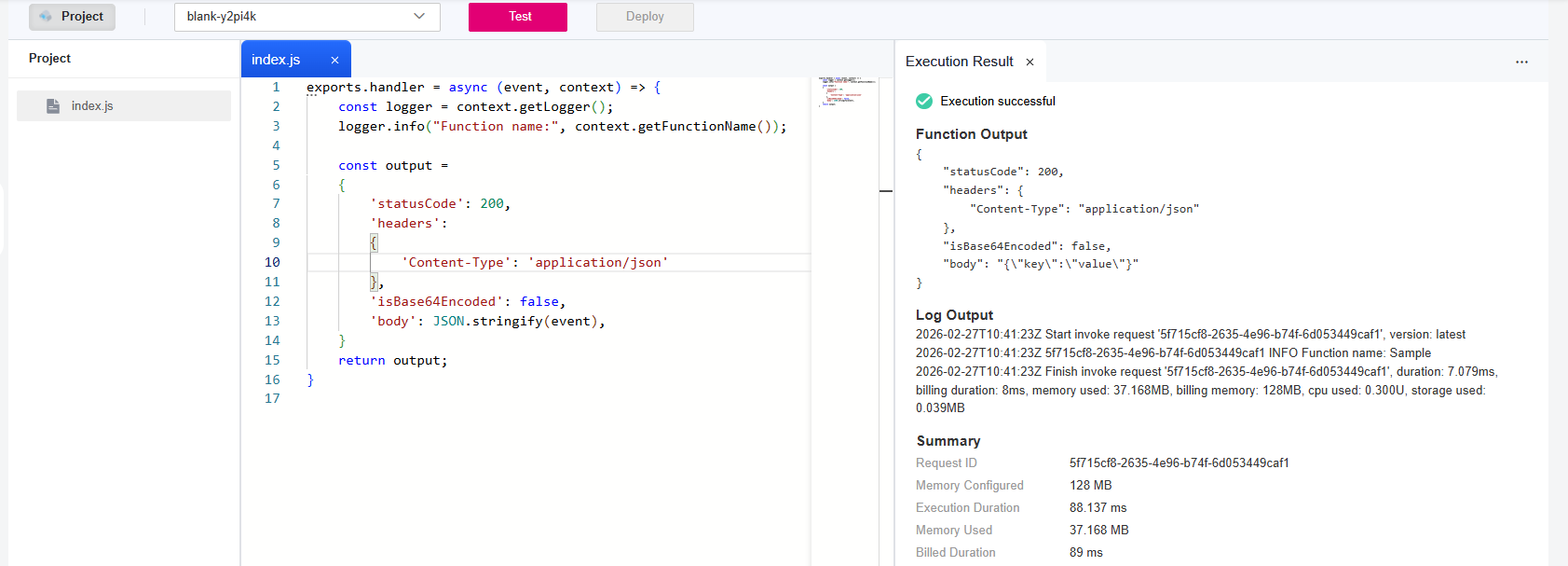
the Execution Result window is displayed on the right. You can check whether the function is executed successfully.
Function Execution Result Description
The execution result consists of the function output, summary, and log output.
Parameter |
Successful Execution |
Failed Execution |
|---|---|---|
Function output |
The defined function output information is returned. |
A JSON file that contains errorMessage and errorType is returned. The format is as follows: {
"errorMessage": "error message",
"errorType": "error type"
}
errorMessage: Error message returned by the runtime. errorType: Error type. |
Summary |
Request ID, Memory Configured, Execution Duration, Memory Used, and Billed Duration are displayed. |
Request ID, Memory Configured, Execution Duration, Memory Used, and Billed Duration are displayed. |
Log output |
Function logs are printed. A maximum of 4 KB logs can be displayed. |
Error information is printed. A maximum of 4 KB logs can be displayed. |